Truist Remote Deposit Capture - Scanner Verification
Truist Remote Deposit Capture - Scanner Verification: Customer is prompted with a scanner verification screen after logging into the Truist site. The check scanner has a red light when it should be green.
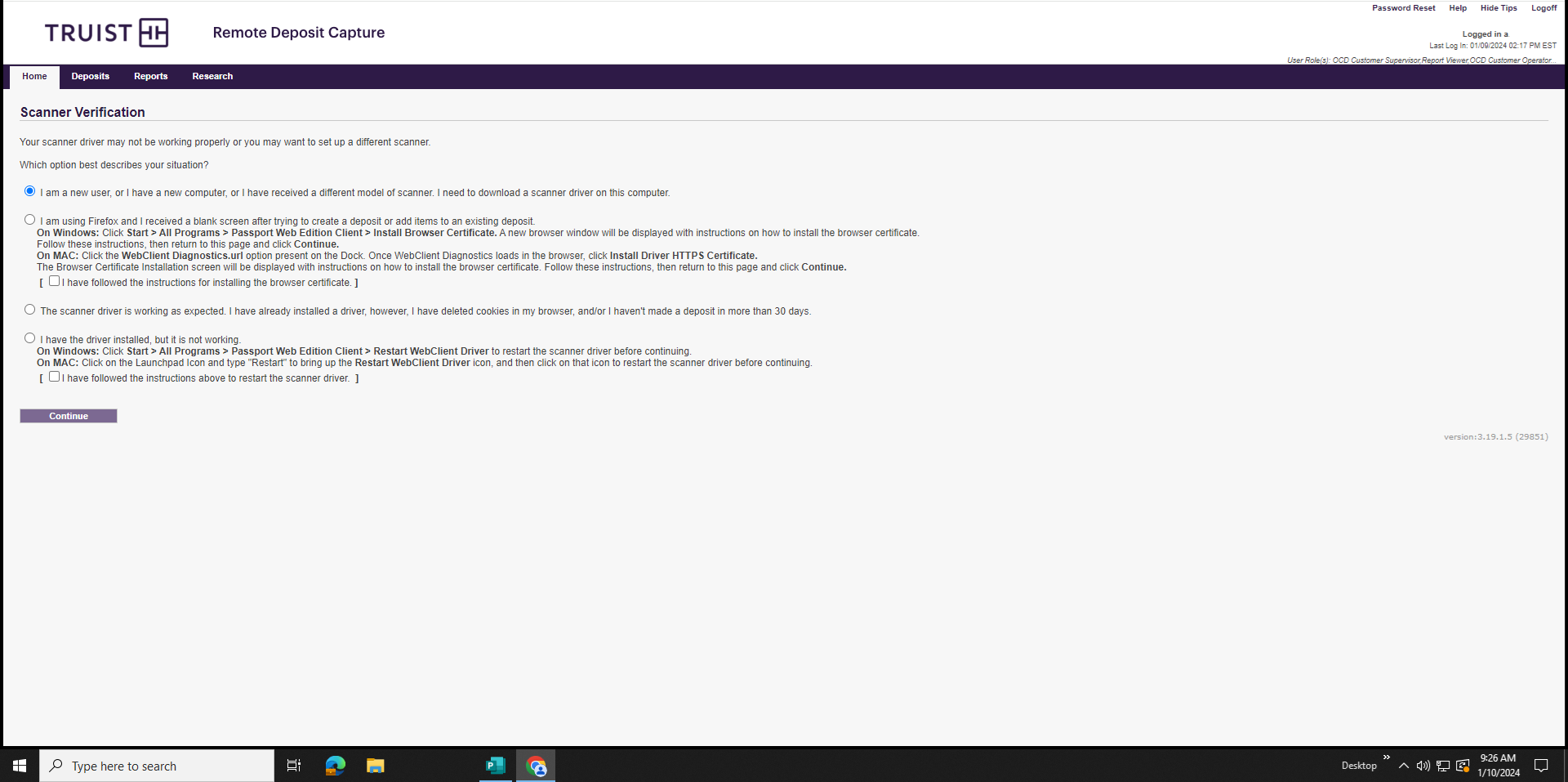
*I am going by memory on some of this and did not capture all details or screen shots. I will update as I gather more information*updated on 01/10/2024
1-Unplug the check scanner from power.
2-Reboot connected PC.
3-Log into window and then onto the Truist website.
4-In the start menu there is a folder named Passport...
There are two options that we will potentially use, restart web client driver, and web client diagnostics.
5-Plug the power back into the scanner, if it turns green then go to #7, if not then continue to #6.
6-Open the diagnostics link and you should be able to go into test scanner and then initialize scanner
Usually once the scanner is initialized the light should turn green. If not then go to #8You can test a check capture if they have one available.
**The test only captures the check image and does not mark or add to a deposit.**
7-Head back over to the scanner verification message and choose the bottom option "I have the driver installed...." and also click on the box for "I have followed the instructions above..."Then you can click the continue button and it will take you to the remote deposit capture page.
8-If the initialization does not turn the light green, go to the passport folder and choose the restart web client driver.
Some times a reboot or two needs to happen in order for the scanner to initialize and light up green.